

Start the creation flow
Click New Chat in the top left to open a conversation with Max.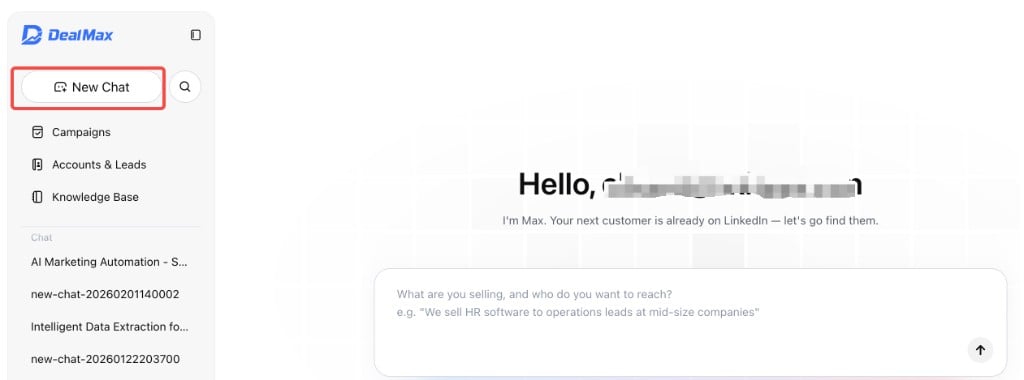
Step 1 · Company and product context
Share as much of the following as you can so Max can analyze your positioning and target market:- Your company or personal LinkedIn profile URL
- The product website you sell (e.g.
yourcompany.com) or a short product description - Your role and title as the seller
Step 2 · Confirm your ICP
Max generates an initial ICP (Ideal Customer Profile): target industries, job titles, company size, regions, and pain points. You can accept it as-is or refine it in plain language, for example:- “Focus only on North America”
- “Target CIO and CTO titles”
- “Exclude companies under 50 employees”
Step 3 · Confirm outreach strategy
Based on your product and ICP, Max generates an Outreach Strategy for you. It defines:- Content angle — whether to lead with industry insight, pain points, product value, and so on
- Follow-up cadence — number of touches and spacing between them
Step 4 · Simulation (recommended)
DealMax previews message copy at each step in the sequence using real prospect samples so you can see how outreach will feel. If something is off, go back, adjust strategy, and run the simulation again.Step 5 · Create the Campaign
After you confirm strategy and simulation, DealMax creates the Campaign with the full message sequence and outreach configuration.Step 6 · Run settings
Configure how the Campaign runs:- Run mode — Copilot (approve before send) or Autopilot (fully automated). See Copilot vs Autopilot.
- Daily connection request limit — stay within LinkedIn’s safe range (about 20–25 per day). Path: profile menu → Settings → Run Settings → Limits → Daily requests per account
- Account running time — align with normal business hours on LinkedIn. Path: profile menu → Settings → Run Settings → Account Running Time
Step 7 · Publish
Review everything and click Publish to start the Campaign. Keep the Chrome extension active; all actions run locally on your device.Contact us
Have questions or need help with DealMax? Get in touch with our team.